
As an Amazon Associate, I earn from qualifying purchases.
In this article 10 sections
- Step 1: Check the Placement Before You Calibrate
- Step 2: Compare Fairly
- Step 3: Calibrate on the Display
- Step 4: Calibrate in My AcuRite (Access, Direct-to-Wi-Fi and PC Connect)
- Step 5: Barometric Pressure Needs Time, Not Buttons
- Step 6: Rain Gauge Calibration (the Cup Test)
- What About Humidity and Wind?
- AcuRite Calibration FAQ
- Update Log
- Sources
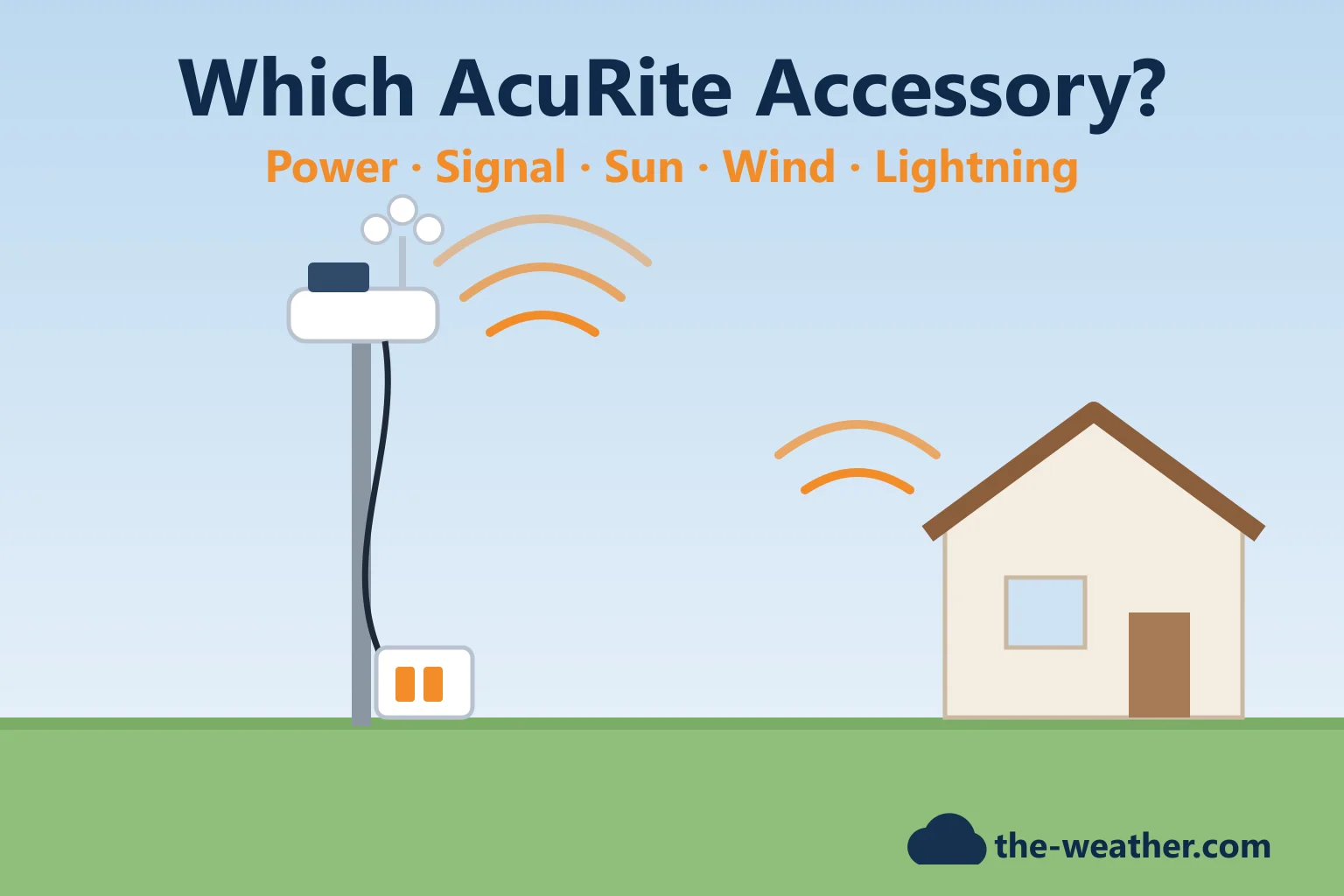
Your AcuRite says it is 91°F while the bank sign down the street says 84°F. Or the rain total looks low after a downpour. Time to calibrate? Maybe. But AcuRite's own troubleshooting starts one step earlier, with where the sensor sits; calibration is meant for when placement or the surroundings still affect the readings. This guide follows AcuRite's method for each reading: temperature, humidity, pressure and rain.
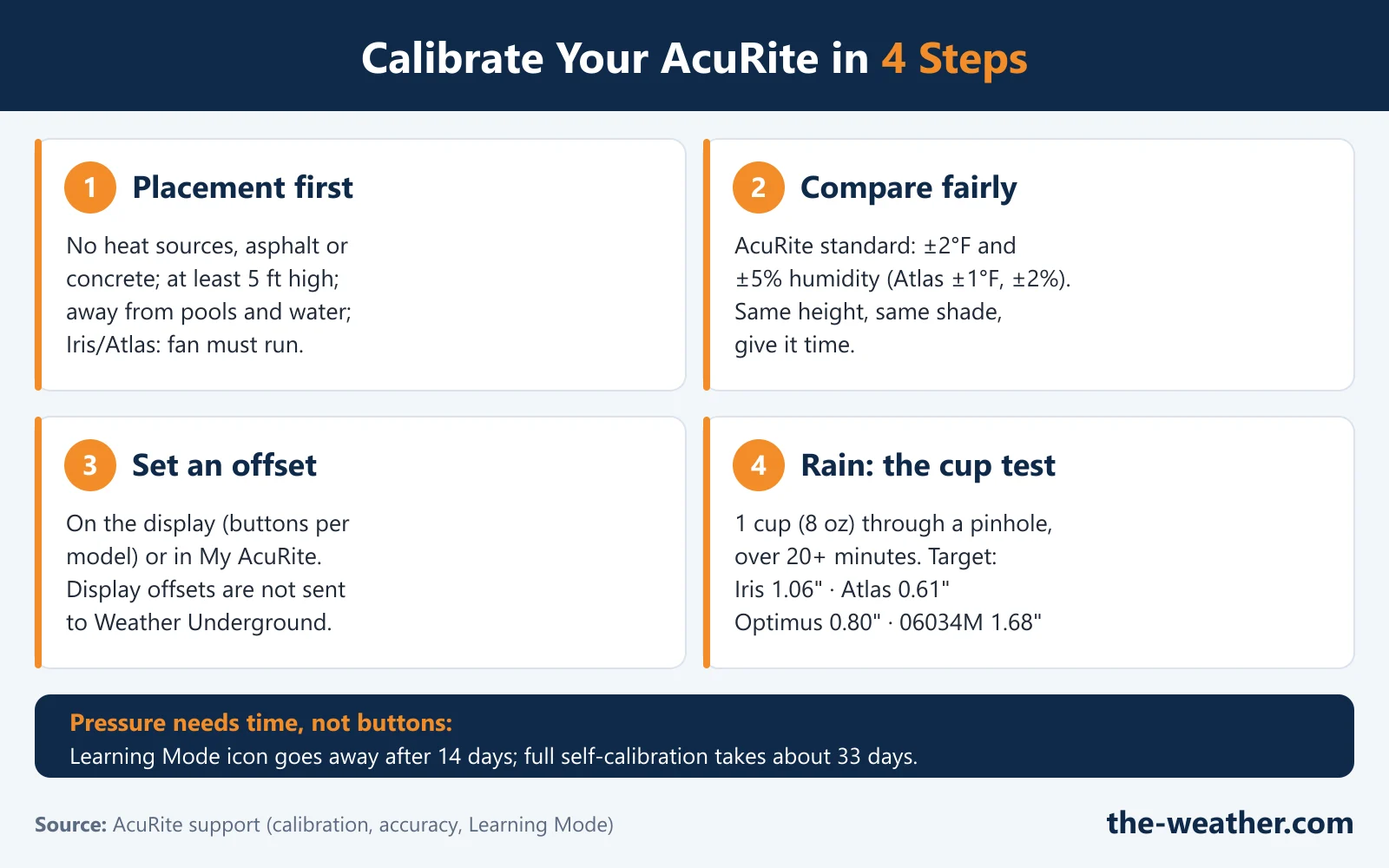
Short answer: check the placement first (no heat sources, at least 5 ft high, away from water). Then compare fairly: AcuRite's own accuracy standard for its Iris, Notos and thermometer sensors is ±2°F and ±5% humidity. Still off? Set an offset on the display or in My AcuRite. Give the barometric pressure up to 33 days to calibrate itself. The rain gauge is calibrated at the factory; if it is still off, AcuRite's slow-drip cup test tells you how far to turn the calibration screws. Sources: AcuRite support, see the list below.
Temperature too high in the sun?
AcuRite PRO+ upgrade (06003M)on Amazon · opens in a new tabFor the single-solar-panel Iris sensor (06004M). For the small sensors (06002RM/592TXR, 06009RM/606TX, 609TXC) and the 06045M, AcuRite makes the 06054M solar radiation shield instead. Read the placement checks below first.
Editorial Research
- Written by
- Lena Thornton, Weather Station Analyst & CWOP Contributor
- Based on
- AcuRite's own support articles on display calibration, calibration in My AcuRite and PC Connect, barometric pressure and Learning Mode, accuracy standards, and the rain calibration of the Iris, Atlas, Optimus and Wireless Rain Gauge Collector; AcuRite's 00589M manual and the 06054M product page. We did not test these steps on our own station.
- Research last verified
- October 19, 2026
Step 1: Check the Placement Before You Calibrate
Calibration adds or subtracts a fixed amount. That works for a sensor that is always a bit off, but not for a sensor that bakes in the afternoon sun and is fine at night. AcuRite's installation guides list what to avoid:
- Heat sources: heaters, air conditioners, chimneys, exhaust vents, and asphalt or concrete that radiates the sun's heat.
- Low mounting: at least 5 feet off the ground. For the Atlas, AcuRite adds that roofing such as shingles or metal can radiate heat and affect the temperature.
- Water: pools, spas and other bodies of water affect the humidity.
- Sprinklers: water forced into the sensor, and false rain.
Too warm on sunny days? On the Iris (5-in-1) and the Atlas (7-in-1), a small solar-powered fan draws air through the temperature sensor to reduce the heating effect of the sun, according to AcuRite. If that fan is blocked or not running, afternoon readings climb: see our Iris fix guide. For the single-solar-panel Iris sensor (06004M), AcuRite offers the PRO+ add-on; we looked at it in our PRO+ review. For the small tower sensors (AcuRite lists 06002RM/592TXR, 06009RM/606TX and 609TXC) and the 06045M lightning detector with temperature and humidity, AcuRite sells the 06054M solar radiation shield, which shades the sensor while letting air flow around it.
Step 2: Compare Fairly
Before you change anything, know what "accurate" means. AcuRite's general accuracy standards for the Iris, Notos and its temperature and humidity sensors and displays:
| Reading | AcuRite standard |
|---|---|
| Temperature | ±2°F (±1°C) |
| Humidity | ±5% RH |
| Rain | ±0.05 inch per inch of rain |
| Wind speed | ±2 mph below 10 mph, up to ±5 mph from 50 to 99 mph |
| Barometric pressure | ±0.15 inHg |
The Atlas sensor has tighter figures (±1°F, ±2% humidity). AcuRite adds that the exact specifications for your product are in its manual. So a difference of 1 or 2 degrees is within spec, and in our view not worth calibrating away.
Compare with something comparable, too. AcuRite points out that pro weather stations are typically mounted at 33 feet or higher (the National Weather Service recommendation), so compare with a sensor at the same mounting height. For analog thermometers, AcuRite suggests letting both units adjust for at least three hours before you compare. In our view the same patience makes sense for any side-by-side test: same spot, same shade, give it time.
Step 3: Calibrate on the Display
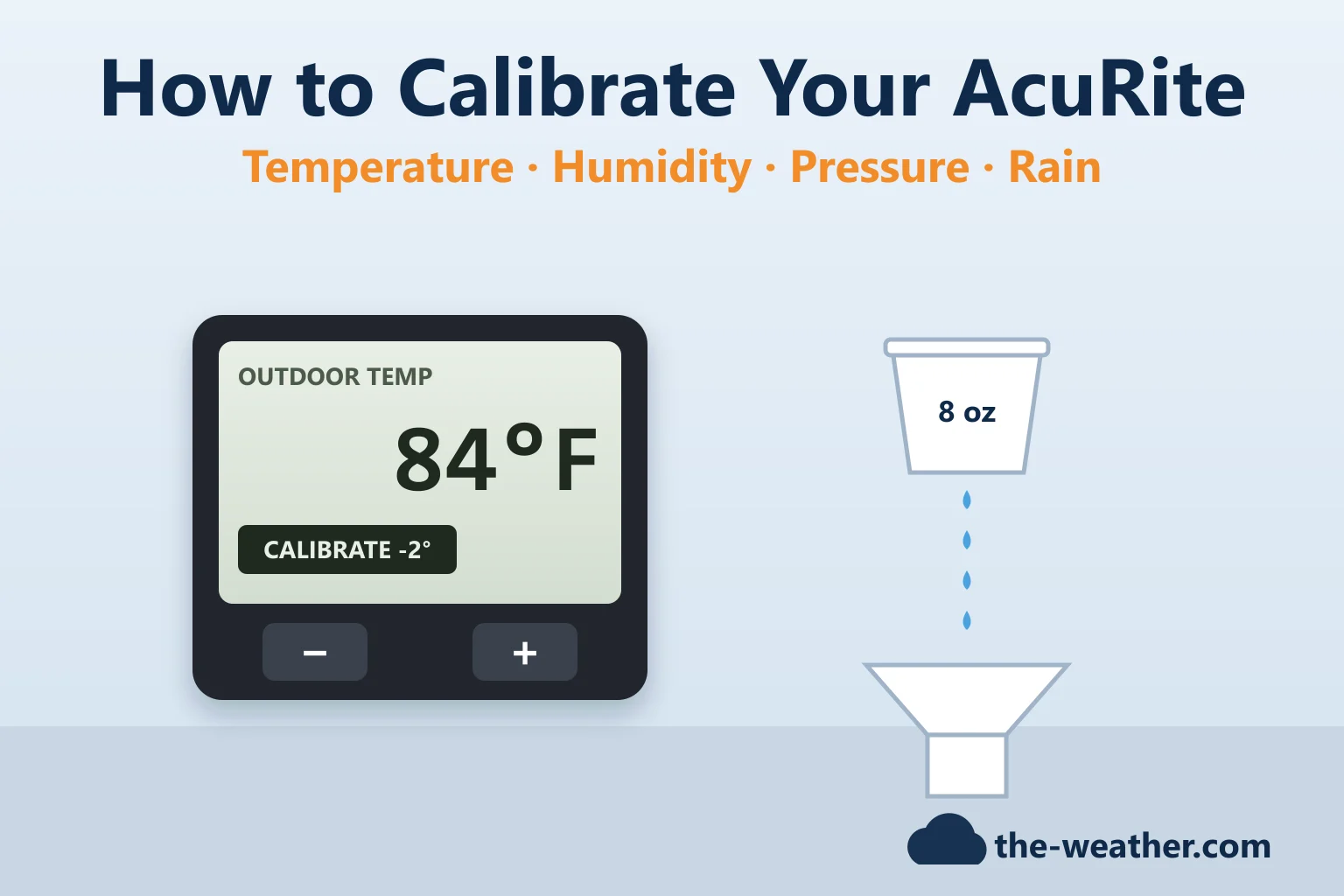
Many AcuRite displays let you set an offset per reading. The buttons differ per model, so check your display's manual. Two examples from AcuRite:
Iris Direct-to-Wi-Fi displays (01544M/06100M, 01527M/06101M, 01547M/06103M)
- Press and hold the buttons AcuRite names (including the up and down arrows) at the same time for 5 to 10 seconds. Only the value being calibrated stays on screen.
- Use the up or down arrow to set the value higher or lower than the actual reading.
- Confirm. A calibration icon stays lit next to calibrated values.
The order is outdoor temperature, outdoor humidity, indoor temperature, indoor humidity, barometric pressure. To calibrate the pressure, the display must be in MANUAL pressure mode (switch between AUTO and MANUAL by holding the button AcuRite names for at least 10 seconds). Important: AcuRite says these display calibrations only change the display; they are not sent to My AcuRite or Weather Underground. And careful: holding only the up and down arrows for 10 seconds switches the display's Wi-Fi on or off.
Notos 00589 display
- Press and hold the "-", "SET" and "+" buttons together for at least 5 seconds.
- Use "-" or "+" to adjust the flashing value, then press "SET" for the next one.
The order: outdoor temperature, outdoor humidity, indoor temperature, indoor humidity, the wind speed interval (30 to 180 minutes) and barometric pressure (in MANUAL mode). The 00589 manual warns that the calibration is erased if you reset the display or remove the batteries while the adapter is unplugged.
Step 4: Calibrate in My AcuRite (Access, Direct-to-Wi-Fi and PC Connect)
If your station is online, you can set the offset in My AcuRite instead. AcuRite's example: a temperature calibration of -10 shows every reading 10 degrees lower than the sensor measured.
- My AcuRite app: Settings menu, Manage Devices, choose the device the sensor is linked to, choose the sensor, set the Adjustments, Save.
- MyAcuRite.com: Settings, Devices, choose the device, Edit the sensor under My Sensors, change the calibration settings, Save.
- PC Connect: set the calibration in the PC Connect software itself (Preferences, Calibrate Readings).
Weather Underground: with the AcuRite Access or a Direct-to-Wi-Fi display, AcuRite says the readings sent to Weather Underground do not include your calibration, because they go straight from the device. With PC Connect, the calibrated readings are sent to both My AcuRite and Weather Underground. Worth knowing if you share data with a weather network.
Step 5: Barometric Pressure Needs Time, Not Buttons
AcuRite's displays calibrate the pressure themselves in "Learning Mode": starting from the global average (29.92 inHg), they take 4,000 readings 12 minutes apart. After 14 days the Learning Mode icon disappears and the pressure is reasonably accurate; the full run takes about 33 days. AcuRite's advice if pressure or forecast still seem off:
- Allow up to 33 days.
- Still off after 33 days without a reset? Do a factory reset of the display (reset button in the battery compartment, or remove batteries and power for 2 minutes), then let it complete the full 33 days again.
- Still off? AcuRite says a microclimate (by a lake or the ocean, a shaded valley, a mountainside) can make the forecast read incorrectly.
AcuRite adds that most of its products measure pressure down to 17.7 inHg, so readings at high altitude can be off. In PC Connect you can adjust the pressure manually, up to ±10 inHg. More on what pressure tells you in our barometric pressure guide.
Step 6: Rain Gauge Calibration (the Cup Test)
AcuRite says its rain gauges come calibrated from the factory; the test below is for a gauge that reads wrong later. The method is nearly the same for each sensor:
- Make sure the sensor is perfectly level (use the built-in bubble level where there is one; the 06034M collector goes on a level surface).
- Put the display close by.
- Make a pinhole in the bottom of a plastic cup, hold it over the gauge and fill it with exactly 1 cup (8 oz) of water.
- Let it drip for more than 20 minutes (at least 20 for the Optimus; faster gives a wrong result, because you are imitating steady rain).
- Compare the total with the target for your sensor below. Repeat the test several times before you touch the screws.
| Sensor (per AcuRite) | Target after 1 cup | To increase the reading | Adjustment |
|---|---|---|---|
| Iris (5-in-1) | 1.06" | Both screws clockwise | 1/8 turn = 2%, 1/4 = 4%, 1/2 = 8% |
| Atlas (7-in-1) | 0.61" | Both screws counterclockwise | 1/4 turn = 2.5%, 1/2 = 5%, 3/4 = 7.5%, 1 = 10% |
| Optimus | 0.80" | The one screw counterclockwise | 1/8 turn = 2%, 1/4 = 6%, 1/2 = 9% |
| Wireless Rain Gauge Collector 06034M (displays 00899, 02446, 06042, 06047) | 1.68" | Both screws counterclockwise | 1/4 turn = 2.5%, 1/2 = 5%, 3/4 = 7.5%, 1 = 10% |
Watch out: the Iris turns the opposite way from the others. Always turn both screws the same amount. AcuRite also says there should be nearly the same number of drops between bucket tips (about 25 on the Iris); if not, adjust the screws until they are even and start again.
Screws turned too far, or removed? AcuRite's way back to roughly the factory setting: tighten the screws fully, then unscrew them 5 1/4 turns (Iris), 2 turns (06034M collector), or 2 1/2 turns for the shorter and 1 turn for the taller screw (Atlas). Clear today's rain, rock the sensor until you hear 10 clicks, and the display should show 0.10 inch. More on the 00899 gauge in our AcuRite rain gauge guide.
A part, not a calibration?
Browse AcuRite replacement partson Amazon · opens in a new tabCheck which part fits your model first in our AcuRite parts guide.
What About Humidity and Wind?
Humidity uses the same offsets as temperature (display or My AcuRite). Want to check a humidity sensor against a known value first? Our salt test guide explains the classic 75% test. Wind has no offset in the AcuRite procedures above; on the 00589 you can only change the averaging interval. For wind, AcuRite's advice is about placement: at least 5 ft, no obstructions, and compare with a sensor at the same height.
AcuRite Calibration FAQ
How do I calibrate the temperature on my AcuRite?
Check the placement first, then set an offset on the display (the buttons differ per model, see the manual) or in My AcuRite under the sensor's Adjustments. AcuRite's general accuracy standard is ±2°F, so small differences are within spec.
Why does my AcuRite read too high in the sun?
Check the placement first and, on the Iris and Atlas, whether the fan is blocked or not running. For the small temperature sensors, AcuRite sells the 06054M radiation shield; for the single-panel Iris sensor, the PRO+ add-on.
Does calibration on the display go to Weather Underground?
No. AcuRite says display calibrations only affect the display, and with the AcuRite Access or a Direct-to-Wi-Fi display, readings are sent to Weather Underground without the My AcuRite calibration. PC Connect does send calibrated readings.
How long does the AcuRite barometric pressure take to calibrate?
After 14 days the Learning Mode icon disappears and the pressure is reasonably accurate; the full calibration runs about 33 days (4,000 readings, 12 minutes apart). AcuRite advises allowing the full 33 days.
How do I calibrate the AcuRite rain gauge?
Level the sensor, drip exactly 1 cup (8 oz) of water through a pinhole cup over more than 20 minutes, and compare with AcuRite's target for your sensor: 1.06" (Iris), 0.61" (Atlas), 0.80" (Optimus) or 1.68" (06034M collector). Then turn the calibration screws as AcuRite describes; the Iris turns the opposite way from the others.
Update Log
- October 20, 2026: Page published. All steps checked against the AcuRite sources listed below on October 19, 2026.
Sources
- AcuRite: Iris (5-in-1) Direct to Wi-Fi Display Calibration
- AcuRite: Set the Reading Calibration of a Sensor and Set Reading Calibration (PC Connect)
- AcuRite: Inaccurate Barometric Pressure or Forecast and Set Barometric Pressure Adjustment
- AcuRite: What are the Accuracy Standards?
- Rain calibration: Iris, Atlas, Optimus, Wireless Rain Gauge Collector
- Placement and heat: Iris sensor installation, Atlas sensor installation, Iris temperature reading too high (PRO+ for 06004M), Atlas inaccurate temperature or humidity, Notos inaccurate wind readings, Analog thermometer calibration
- AcuRite 00589M instruction manual; AcuRite Solar Radiation Shield (06054M)
See also: AcuRite weather stations · AcuRite Iris fix guide · AcuRite rain gauge guide · Hygrometer salt test