
We may earn a commission when you buy through links on this page, at no extra cost to you. Learn more
In this article 10 sections
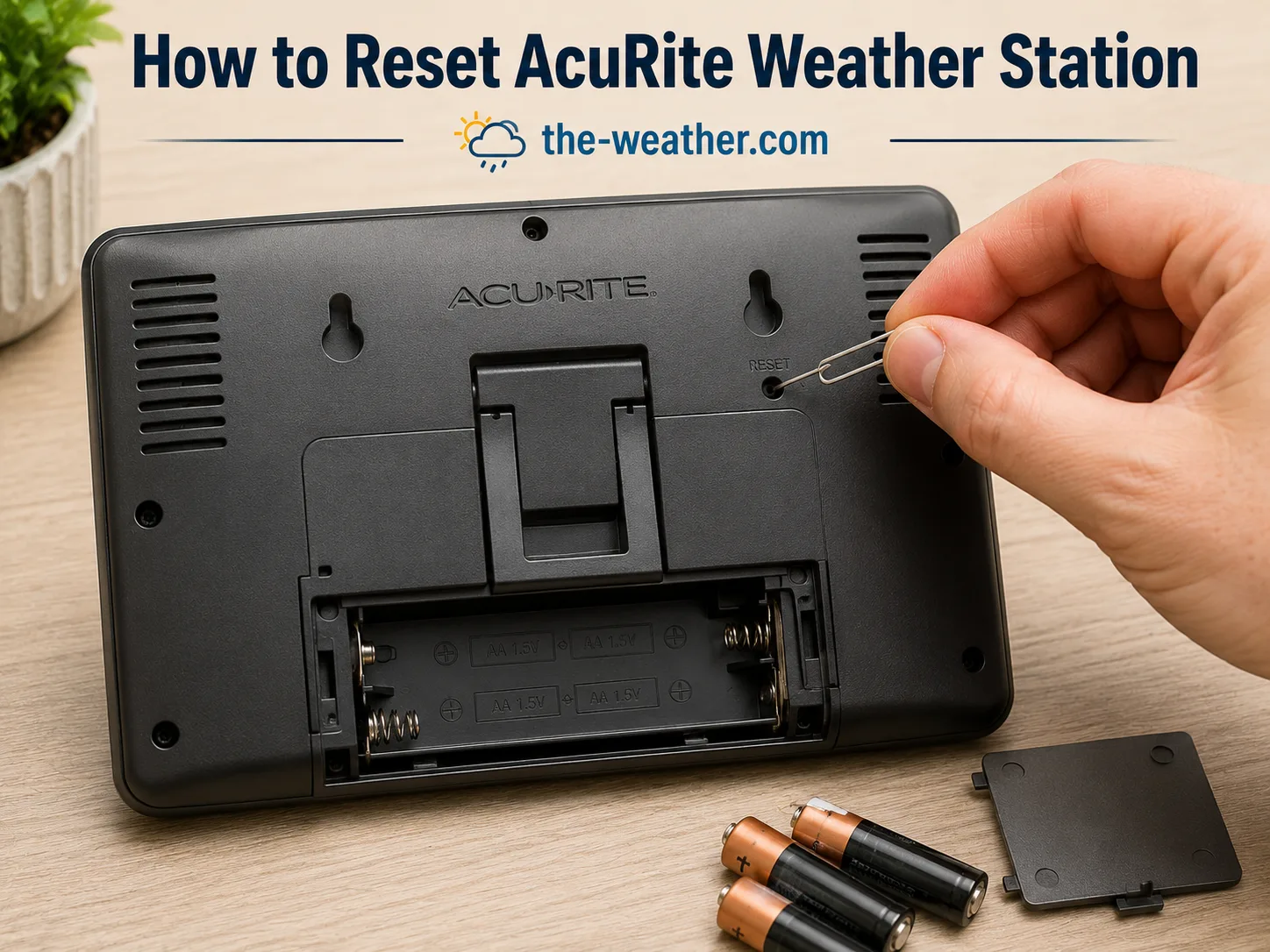

AcuRite weather stations occasionally need a reset after a power outage, router change, firmware update, or sensor battery replacement. There are three distinct reset types, a sensor pairing reset, a Wi-Fi reconnection, and a full factory reset, and using the wrong one wastes time and can clear data unnecessarily.
This guide covers all three reset procedures for every current AcuRite model, with a diagnostic table to identify which reset you actually need before you start.
Which Reset Do You Need? Start Here
Work through this decision tree before starting any reset procedure. Most AcuRite problems are resolved by the sensor pairing reset: the factory reset is rarely needed.
Reset Type Comparison
| Reset type | Typical success | Deletes data | Time | Difficulty |
|---|---|---|---|---|
| Sensor pairing reset | High, fixes most dropout and dashes | None | 5 min | Easy |
| Wi-Fi reconnection | Moderate to high: depends on router config | None (cloud preserved) | 10 to 15 min | Easy |
| Factory reset | Last resort: use only when all else fails | Local settings and offsets | 20 min | Moderate |
Common Mistakes to Avoid
These are the most frequently reported errors that prevent an AcuRite reset from working, and send users back to square one.
- Powering the console before the outdoor sensor: the console scans for the sensor signal during its first few minutes after power-on. If the sensor is not already transmitting when the console starts, the pairing window may be missed. Always power the sensor first, wait 30 seconds, then power the console.
- Using rechargeable NiMH batteries: they run at 1.2V instead of 1.5V. The lower voltage causes weak signal or complete failure to pair, making it appear the reset has not worked when the real issue is battery voltage.
- Skipping the 2-minute wait: a 30-second wait is not enough. Both units need at least 2 minutes with no power to fully discharge and clear the corrupted pairing state. Rushing this step is the most common reason a reset appears to fail.
- Pairing outdoors at the final sensor location, always complete the initial pairing with the sensor within 10 feet of the console indoors. Only move the sensor to its outdoor position after live readings have appeared on the console.
- Connecting to a 5 GHz Wi-Fi network during setup: AcuRite stations only support 2.4 GHz. If your phone connects to 5 GHz automatically during the My AcuRite app setup, the station will fail to connect every time without any useful error message.
- Performing a factory reset when a pairing reset would have worked: a factory reset clears calibration offsets and all settings. Try the sensor pairing reset first: it resolves the vast majority of AcuRite issues without losing any configuration.
Quick Reference: Which Reset for Which Symptom
| Symptom | Reset needed | Time |
|---|---|---|
| Console showing dashes for outdoor readings | Sensor pairing reset | 5 min |
| Outdoor sensor not connecting after battery change | Sensor pairing reset | 5 min |
| Station showing offline in My AcuRite app | Wi-Fi reconnection | 10 min |
| Wi-Fi not connecting after router change | Wi-Fi reset and reconnection | 15 min |
| Console frozen or unresponsive | Console power cycle first, factory reset if needed | 5 to 20 min |
| All settings wrong after firmware update | Factory reset | 20 min |
| Selling or giving away the station | Factory reset | 20 min |
Reset 1: Sensor Pairing Reset
Use this reset when the console is showing dashes, the outdoor sensor has stopped connecting, or readings have frozen after a power outage or battery change.
- Remove the outdoor sensor batteries. Open the battery compartment on the outdoor sensor (3 AA batteries on the Iris 5-in-1). Remove all batteries and set them aside: do not reuse them.
- Unplug the console from AC power. Remove the AC adapter from the wall socket.
- Remove the console backup batteries. Open the battery compartment on the back of the console and remove all batteries.
- Wait 2 full minutes. This is not optional: a 30-second wait is insufficient. The 2-minute wait allows all capacitors in both units to fully discharge, clearing any corrupted pairing state.
- Install fresh lithium AA batteries in the outdoor sensor first. Do not use alkaline or rechargeable NiMH batteries. Wait 30 seconds after inserting the batteries: the sensor LED should flash once to confirm it has started transmitting.
- Restore power to the console. Plug the AC adapter back in, then insert the console backup batteries. Keep the sensor within 10 feet of the console during this step.
- Wait up to 5 minutes. The console scans for the sensor signal during the first few minutes after power-on. Do not move the sensor to its outdoor position until the console confirms signal reception with live readings.
Reset 2: Wi-Fi Reconnection
Use this when the station is offline in the My AcuRite app, not uploading to Weather Underground, or failing to connect after a router change or password update.
- Connect your phone to the 2.4 GHz Wi-Fi band. AcuRite stations cannot connect to 5 GHz networks. If your router broadcasts both bands on the same name, go to your router settings and temporarily separate them, or manually select the 2.4 GHz band on your phone before proceeding.
- Power cycle the console. Unplug the AC adapter, remove console batteries, wait 30 seconds, then restore power. This clears the previous network session.
- Open the My AcuRite app. Navigate to Settings, then Device Settings, then select your station. Choose Wi-Fi Setup or Connect to Network.
- Follow the in-app setup sequence. The app will prompt you to select your network and enter the password. Enter the password carefully: special characters (!, @, #, $) occasionally cause connection failures on AcuRite firmware. If you use special characters, try temporarily removing them from your Wi-Fi password during setup.
- Wait 5 minutes after completing setup. The console takes several minutes to establish the cloud connection and begin uploading. Check the app after 5 minutes for the green online indicator.
- Verify Weather Underground upload. If WU was previously configured, check the WU station dashboard to confirm uploads have resumed. If not, re-enter the WU station ID and key in the My AcuRite app settings.
Reset 3: Factory Reset
Use this only as a last resort, when the console is completely unresponsive, frozen after a failed firmware update, or being prepared for resale. A factory reset clears all local settings, calibration offsets, and Wi-Fi credentials. Cloud data in the My AcuRite app is preserved.
- Locate the Reset button on the back of the console. It is a small recessed button, typically labelled RESET. You will need a paperclip or pin to press it.
- Hold the Reset button for 10 seconds. The display will clear and the console will restart. Release the button when the display goes blank or shows the startup screen.
- Remove all power from the console. Unplug the AC adapter and remove backup batteries. Wait 2 minutes.
- Remove the outdoor sensor batteries. Both units need to be fully depowered for the factory reset to take full effect.
- Restore power to the outdoor sensor first. Install fresh lithium AA batteries and wait 30 seconds.
- Restore power to the console. The console will go through the initial setup sequence as if new.
- Re-run Wi-Fi setup via the My AcuRite app. Follow the Wi-Fi reconnection procedure above. Re-enter any calibration offsets (barometric pressure, temperature) that were previously configured.
Model-Specific Reset Notes
| Model | Sensor batteries | Reset button location | Special notes |
|---|---|---|---|
| AcuRite Iris 5-in-1 | 3 AA lithium | Back of console, recessed | After pairing reset, wait for all 5 sensor readings before moving outdoors |
| AcuRite Iris with PRO+ | 3 AA lithium (in sensor, not PRO+) | Back of console, recessed | PRO+ upgrade has no batteries, only the base sensor needs replacing |
| AcuRite Atlas | 3 AA lithium | Back of console, recessed | Lightning sensor may need 30 minutes after reset before calibrating |
| AcuRite standalone thermometers | 2 AA alkaline or lithium | No reset button: power cycle only | Simpler pairing: sensor and display auto-pair within 1 minute at close range |
After the Reset: What to Check
- All 5 readings showing: temperature, humidity, wind speed, wind direction, and rainfall should all display within 5 minutes of the sensor being powered on outdoors.
- Rainfall total reset, if the rain gauge showed accumulated totals before the reset, check whether these have been cleared. If not, zero the rain total manually via the console menu.
- Barometric pressure calibration: factory reset clears calibration offsets. Re-enter your local sea-level pressure offset via the console calibration menu. Compare against weather.gov for the correct reference value.
- My AcuRite app showing online: the green online indicator should appear within 5 minutes of Wi-Fi reconnection completing.
- Weather Underground uploading: check your WU station dashboard 10 minutes after reconnection to confirm data is arriving.
Frequently Asked Questions
How do I reset my AcuRite weather station?
Remove the outdoor sensor batteries, unplug the console and remove its backup batteries, wait 2 full minutes, then install fresh lithium batteries in the outdoor sensor first. Wait 30 seconds, then restore console power. Keep both units within 10 feet during re-pairing. This resolves most sensor dropout, dashes on display, and pairing failures.
How do I reconnect my AcuRite station to Wi-Fi?
Open the My AcuRite app, go to Device Settings, and run Wi-Fi Setup. Before starting, connect your phone to your 2.4 GHz Wi-Fi band: AcuRite stations cannot connect to 5 GHz. Power cycle the console before re-running setup if a previous attempt failed.
What does it mean when my AcuRite console shows dashes?
Dashes mean the console has lost communication with the outdoor sensor. Replace the outdoor sensor batteries first: fresh lithium AA resolves dashes in most cases. If dashes persist after fresh batteries, perform the full pairing reset described above.
How do I factory reset an AcuRite Iris 5-in-1?
Hold the Reset button on the back of the console for 10 seconds until the display clears. Then remove all power from both the console and sensor. Wait 2 minutes. Install fresh sensor batteries first, restore console power, then re-run Wi-Fi setup via the My AcuRite app.
Will resetting my AcuRite station delete my historical data?
A sensor pairing reset does not delete cloud data: everything in the My AcuRite app is preserved. A factory reset clears local console data and settings but the My AcuRite cloud data remains intact as long as your app account is still active.
Sources
Reset procedures from AcuRite official support documentation. Wi-Fi connectivity guidance from AcuRite product manuals. Verified against AcuRite Iris 5-in-1 and Atlas product documentation.
Lena Thornton
Weather Station Analyst and CWOP Contributor. Lena has researched, reviewed and analysed weather stations and instruments for over a decade. She contributes observation data to the Citizen Weather Observer Program (CWOP) and writes exclusively for the-weather.com.