

As an Amazon Associate, I earn from qualifying purchases.
In this article 6 sections

The 328-69357 package: Breeze Pro sensor, rain gauge, console, and mounting hardware. Check the wind cup set screw before mounting at height.
All steps on this page are sourced from La Crosse Technology's official 328-69357 documentation and the La Crosse View official support pages. If you run into Wi-Fi connection problems specifically, see our dedicated La Crosse 328-69357 not connecting page for targeted fixes.
This page covers:
- What's in the box and what you need to supply
- Time expectations for each stage
- Step-by-step sensor mounting, console setup, and Wi-Fi connection
- Barometric pressure calibration
- 5 common setup mistakes and how to avoid them
- Success checklist before considering your setup complete
What's in the Box
- Colour display console
- Breeze Pro outdoor sensor (wind + rain + temp + humidity)
- Self-emptying rain gauge
- AC power adapter for console
- Mounting hardware and bracket
- Quick start documentation
- 6 × AA batteries for the Breeze Pro sensor
- Mounting pole (not included)
- Smartphone for La Crosse View app setup
- Screwdriver for bracket assembly
- 2.4GHz Wi-Fi network
Time Expectations
| Stage | Typical time | Notes |
|---|---|---|
| App download and account | 5 minutes | Do this first, before touching hardware |
| Sensor assembly and battery install | 10 minutes | Check wind cup set screw before mounting |
| Sensor mounting outdoors | 15–20 minutes | Varies by mounting location and pole height |
| Console setup and sensor pairing | 5 minutes | Sensor data should appear within 3 minutes of power-on |
| Wi-Fi connection via app | 5–10 minutes | Allow more time if on a dual-band or mesh network |
| Pressure calibration | 5 minutes | Optional but recommended for accurate forecasts |
| Total | 40–55 minutes | On a straightforward 2.4GHz network |
Step-by-Step Setup
Download the La Crosse View app and create your account
Download the La Crosse View app from the App Store or Google Play before touching any hardware. Create a free account and log in. Having the app ready before installation prevents delays during the Wi-Fi pairing step: you cannot pair the station without an active app session.
Confirm your Wi-Fi network is 2.4GHz
The 328-69357 requires a 2.4GHz Wi-Fi network and will not connect to 5GHz. Check your router settings before starting the pairing process. If your router is dual-band or a mesh system broadcasting both bands under one name, temporarily create a separate 2.4GHz SSID in your router admin panel. Connect your phone to that 2.4GHz network before starting the Smart Config pairing step.
Install batteries in the Breeze Pro sensor
Open the battery compartment on the Breeze Pro outdoor sensor and install 6 × AA batteries per the polarity markings. Before closing, check the wind cup set screw: grip the wind cups and attempt to rotate them independently of the sensor body. They should not rotate freely. If they do, tighten the set screw with a small screwdriver before mounting. This is a known quality control issue on some units and is much easier to address before the sensor is mounted at height.
Choose and prepare your mounting location
The Breeze Pro sensor needs an open location for accurate wind and rainfall measurement. Per La Crosse Technology's placement guidance:
- Mount at least 10 feet high for representative wind readings
- At least 1.5 times the height of any nearby obstruction away from trees, buildings, or fences
- Level ground or a vertical mounting pole: the sensor must be plumb for accurate rain measurement
- Away from heat sources, AC units, dryer vents, and reflective surfaces that affect temperature readings
- Within wireless range of the console: walls and obstructions reduce range
Mount the Breeze Pro sensor and rain gauge
Attach the Breeze Pro sensor to your mounting pole or bracket using the included hardware. Attach the self-emptying rain gauge to the mounting arm and level it using the built-in bubble level: accurate rainfall measurement requires the gauge to be level. Clear the funnel of any packaging debris before first use. Confirm the wind cups rotate freely once mounted.
Power on the console and verify sensor reception
Connect the console to power via the AC adapter. The display will show dashes initially while searching for the outdoor sensor. Within 3 minutes of powering on the Breeze Pro, temperature and humidity readings should appear on the console. Wind readings may take a moment to register. Rainfall shows as 0.00 until the first rain event or a manual test tip of the gauge.
Connect to Wi-Fi via the La Crosse View app
With your phone connected to your 2.4GHz network, open the La Crosse View app and tap Add Device. Select your station model and follow the Smart Config prompts. The app will ask you to enter your Wi-Fi password: confirm you are entering the password for the 2.4GHz network specifically. The console LED will flash during the pairing process and turn solid once connected. The station should appear in your app dashboard within 2 minutes of successful connection.
If Smart Config fails after two attempts, try the alternative WPS method (press the WPS button on your router if available) or the manual AP mode setup described in your console menu. See our La Crosse 328-69357 not connecting page for full troubleshooting steps.
Calibrate barometric pressure
The console measures barometric pressure internally and auto-calibrates on first power-on. For more accurate local pressure and forecast readings, manually set the pressure offset using your local station pressure. Find your nearest official weather station reading from Weather Underground or your national met service, then access the pressure calibration menu in the console settings. This step is optional but improves the accuracy of the forecast icons.
5 Common Setup Mistakes
The single most frequently reported setup problem. Attempting Smart Config pairing while your phone is on a dual-band network that includes 5GHz causes silent failure: no error message, just no connection. Separate your 2.4GHz band under its own SSID in your router settings before starting the app pairing step.
Some units arrive with the wind cup set screw undertightened: the cups appear attached but spin freely on the shaft rather than driving the sensor. This results in zero or erratic wind readings. Check the set screw before mounting the sensor at height where it is difficult to access. A simple half-turn tightening resolves the issue.
The self-emptying rain gauge uses a tipping bucket mechanism that requires level mounting for accurate measurement. A gauge that is even slightly tilted will tip at a different threshold than calibrated, causing over or under-reporting of rainfall. Use the bubble level on the gauge itself to confirm level mounting before securing the bracket.
Mounting the Breeze Pro near a dryer vent, AC condenser, or south-facing wall in direct sun causes inflated temperature readings regardless of sensor accuracy. The most common symptom is outdoor temperature reading 5–15°F higher than actual conditions. Relocate to a shaded, north-facing position with good airflow for representative readings.
Wi-Fi setup and sensor pairing are independent processes. The console must show live sensor data before Wi-Fi setup begins, if sensor data is not displaying, the station is not fully operational regardless of Wi-Fi status. Confirm temperature, humidity, and wind readings on the console before opening the La Crosse View app.
Setup Success Checklist
- Outdoor temperature and humidity showing on console display
- Wind speed and direction updating on console
- Rain gauge shows 0.00 (or a reading after test tip)
- Barometric pressure displaying with trend arrow
- Forecast icons updating on console
- Station appearing in La Crosse View app dashboard
- App showing live data matching console readings
- Alert thresholds configured in app (optional)
- Barometric pressure calibrated against local reference (optional)
If Setup Does Not Work
- Console shows dashes: no sensor data: Confirm batteries are installed in the Breeze Pro, the sensor is powered on, and it is within range of the console. Bring the sensor temporarily indoors close to the console to confirm basic reception before mounting permanently outdoors.
- Wi-Fi pairing fails repeatedly: Confirm your phone is on a 2.4GHz-only network. Restart both the console and your router. Try the WPS method if your router supports it. See our full La Crosse 328-69357 not connecting page for all available fixes.
- Wind reads zero: Check the wind cup set screw. Confirm the cups rotate freely in the wind without slipping on the shaft. Tighten the set screw if needed.
- Temperature reads too high: The sensor is likely in direct sun or near a heat source. Relocate to a shaded position with free airflow. Even an hour after relocation, readings should normalise to ambient conditions.
Want to reset another La Crosse station, or clear a rain total? See our La Crosse reset guide.
Frequently Asked Questions
How long does the La Crosse 328-69357 setup take?
Physical installation and console setup typically takes 20–30 minutes. Wi-Fi connection adds 10–15 minutes on a simple 2.4GHz network. Allow up to 60 minutes if you need to troubleshoot a dual-band or mesh network.
Why won't the La Crosse 328-69357 connect to Wi-Fi during setup?
The most common cause is a 5GHz or dual-band network. The 328-69357 requires 2.4GHz. On mesh systems, temporarily separate the 2.4GHz band to its own SSID and connect your phone to it before starting Smart Config pairing. Full troubleshooting steps in our not connecting page.
The La Crosse 328-69357 shows dashes instead of sensor data: what does this mean?
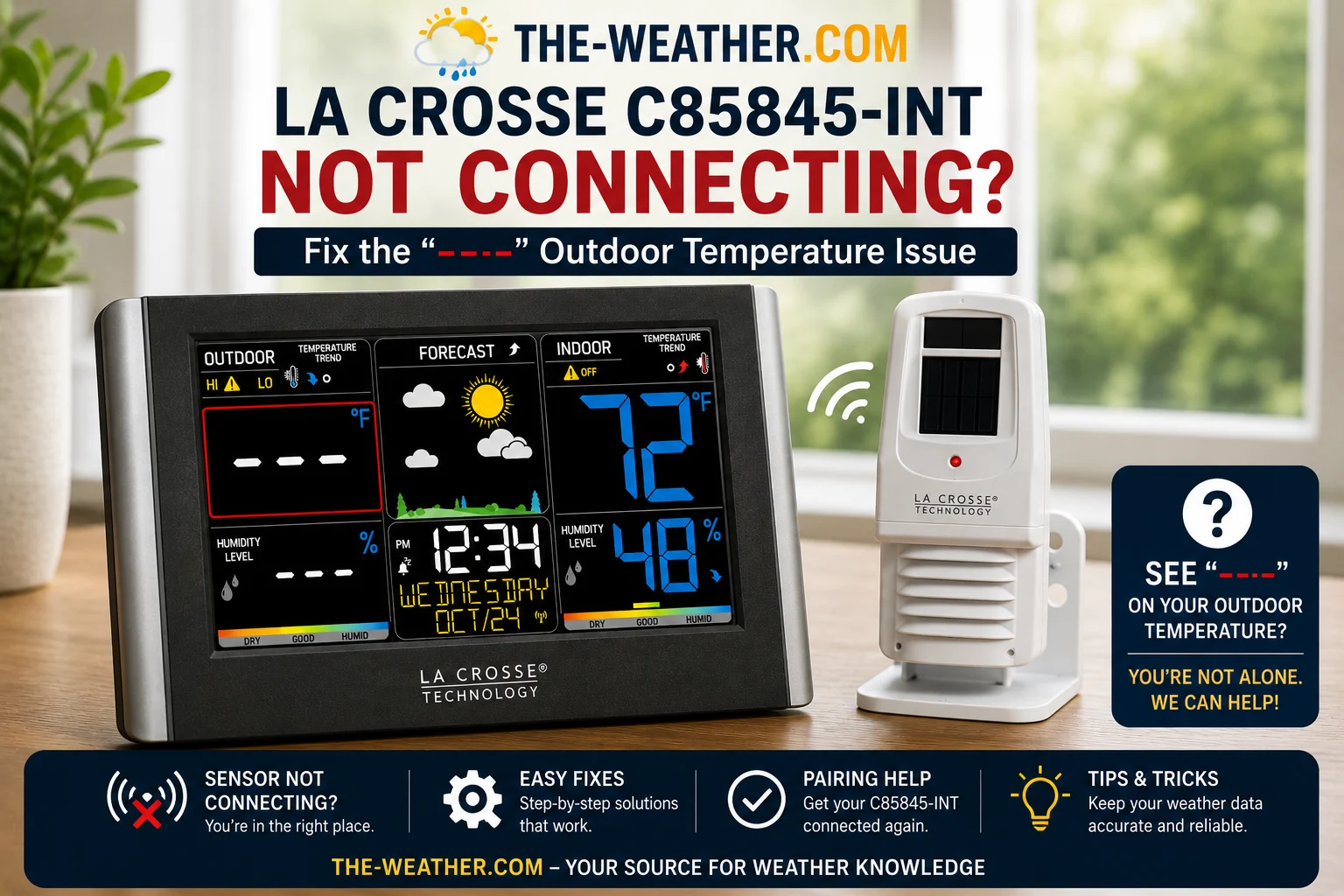
Dashes mean the console is not receiving data from the outdoor sensor. Check that batteries are installed, the sensor is powered on, and it is within wireless range. Bring the sensor temporarily indoors close to the console to test basic reception before diagnosing a range problem.
How do I calibrate the barometric pressure on the La Crosse 328-69357?
Access the pressure calibration option in the console settings menu. Enter your local station pressure from a nearby official weather source such as a local airport METAR or Weather Underground personal weather station. This adjusts the console's reading to match your local elevation and conditions.
Seven targeted fixes for Wi-Fi connection problems: covering 2.4GHz band issues, Smart Config failures, mesh networks, and factory reset procedure.
Sources
All setup steps sourced from La Crosse Technology's official 328-69357 product page and La Crosse View official support documentation. Placement recommendations from official La Crosse sensor placement guidance. We did not perform hands-on testing of this unit. Product specifications may change: verify current documentation before setup. No manufacturer compensation was received.

Lena Thornton
Weather Station Analyst & CWOP Contributor. Lena has researched, reviewed and analysed weather stations and environmental sensors from AcuRite, Ambient Weather, Davis Instruments, La Crosse Technology, Govee, ThermoPro, and SensorPush. Published June 2026.